



Google Analytics for Small Business: A Practical GA4 Setup Guide
Google Analytics can tell a small business which marketing channels attract potential customers, which pages influence enquiries and where people leave before taking action. But simply installing GA4 does not produce useful business intelligence. A default setup often records page views while missing the events that actually matter: form submissions, calls, bookings, purchases and qualified leads.
This guide explains how to set up and use Google Analytics for a small business without building an enterprise-level measurement system. You will create a focused measurement plan, install GA4 through Google Tag Manager, configure key events, verify the data and build a reporting routine that supports real decisions.
What Is Google Analytics 4?
Google Analytics 4, usually called GA4, is Google’s current analytics platform for websites and apps. It uses an event-based model: page views, clicks, purchases and other interactions are recorded as events with additional parameters.
For a small business, GA4 can answer questions such as:
- Which channels bring visitors who enquire or buy?
- Which landing pages generate valuable actions?
- Where do users abandon a form, checkout or booking path?
- Do paid campaigns produce sales or only traffic?
- Which locations, devices and content types perform best?
Google provides a free standard version, which is sufficient for most small websites. The value comes from the quality of the implementation and the decisions made from the data—not from collecting every possible event.
Do Small Businesses Need Google Analytics?
A business does not need GA4 merely because it owns a website. It needs analytics when website or campaign decisions depend on evidence. If you invest in SEO, Google Ads, content, email or landing pages, measuring outcomes helps you allocate limited time and budget.
GA4 should not be treated as a perfect accounting system. Consent choices, ad blockers, cross-device behavior and implementation errors create gaps. Use it to identify patterns, compare channels and diagnose journeys. Use your CRM, ecommerce platform and financial records as the source of truth for confirmed leads and revenue.
Start with a Measurement Plan, Not the Tracking Code
Before creating an account, write down the actions that indicate business progress. A practical small-business measurement plan fits on one page.
| Business objective | User action | GA4 event | Decision supported |
|---|---|---|---|
| Generate enquiries | Form submitted | generate_lead |
Which channels produce leads? |
| Receive phone calls | Phone link clicked | click_phone |
Which pages drive calls? |
| Sell products | Order completed | purchase |
Which campaigns generate revenue? |
| Book consultations | Booking confirmed | generate_lead |
Which landing pages convert? |
| Build an email list | Signup completed | sign_up |
Which content attracts subscribers? |
Use Google’s recommended event names where they fit. This improves compatibility with standard reports. Google’s official recommended-events reference includes lead, ecommerce and signup events.
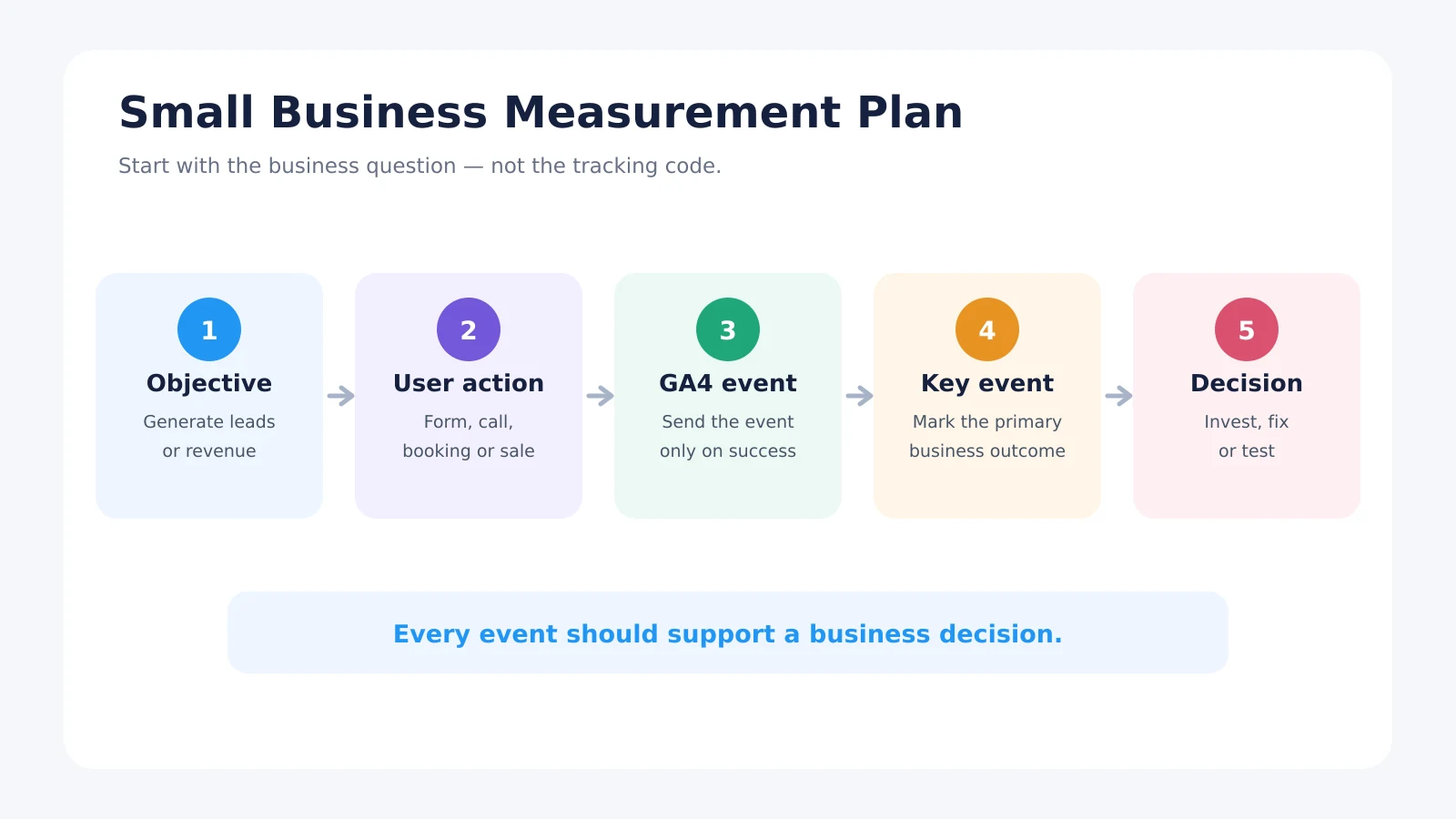
Separate primary actions from diagnostic interactions. A completed enquiry or purchase can be a key event. Scrolling, menu clicks and video starts may help explain behavior, but marking all of them as key events makes performance look better without creating more customers.
How to Set Up Google Analytics for a Small Business
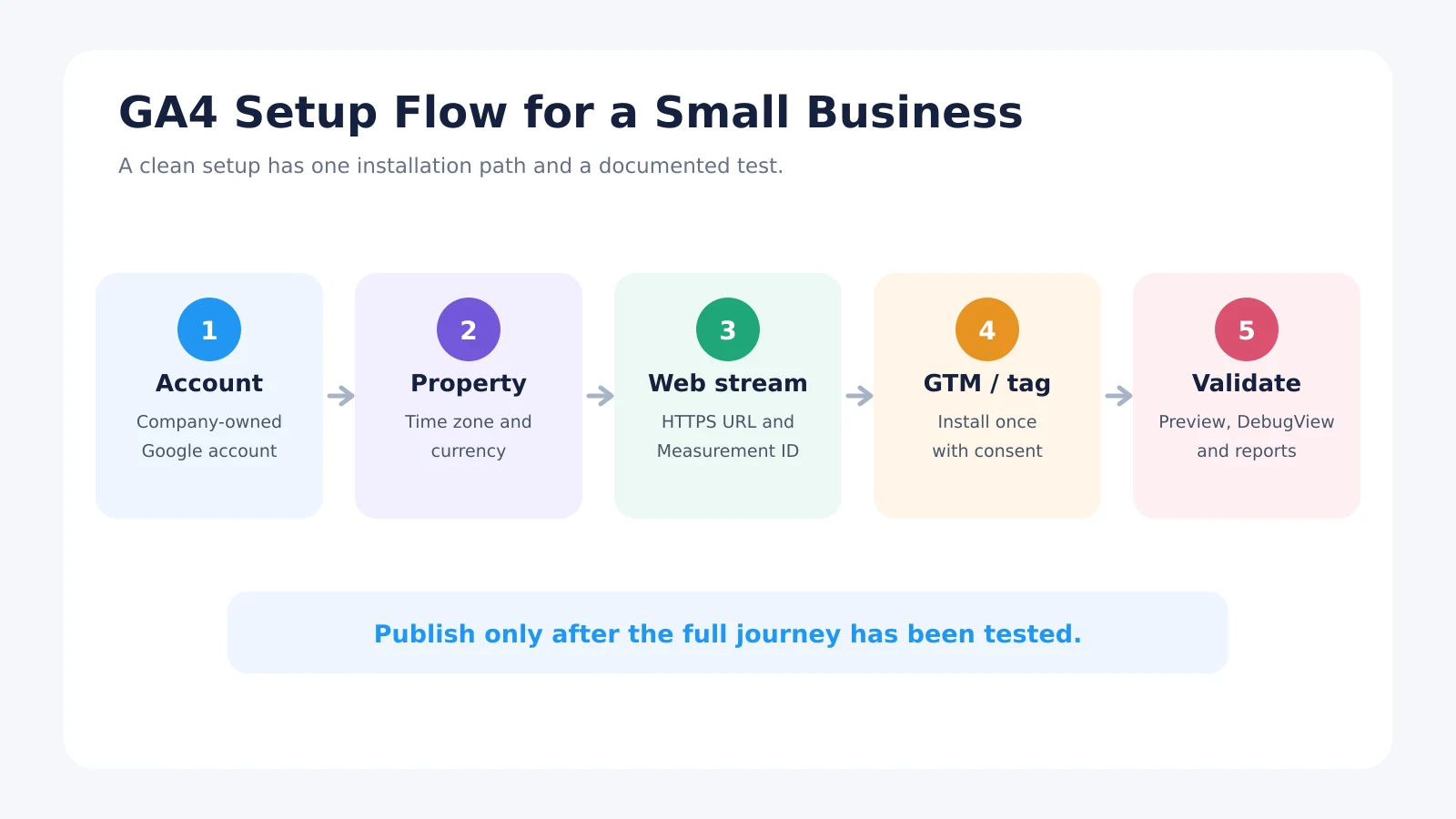
Step 1: Create a Google Analytics account and GA4 property
Sign in at Google Analytics with a company-controlled Google account. Avoid creating the property exclusively under an employee’s or agency’s personal email address.
- Open Admin and choose Create account if required.
- Create a property using a clear name such as “Company – Main Website.”
- Select the correct reporting time zone and currency. These settings affect daily reporting and revenue values.
- Add the business information requested by Google.
Google’s official GA4 setup documentation reflects the current interface.
Step 2: Create a web data stream
Choose Web, enter the canonical HTTPS website URL and give the stream a recognizable name. GA4 will generate a Measurement ID in the format G-XXXXXXXXXX.
Review Enhanced Measurement rather than accepting it blindly. It can collect page views, scrolls, outbound clicks, site search, video engagement, file downloads and some form interactions. These events are useful, but automatic form tracking does not always represent a successful submission. A click on “Send” is not the same as a confirmed lead.
Step 3: Choose an installation method
You can install GA4 through a CMS integration, the Google tag directly in the website code or Google Tag Manager. For a small brochure website with no custom tracking, a reliable native integration may be enough. Google Tag Manager is usually more flexible when you need lead events, advertising pixels, consent controls or future changes.
Use one primary method. Installing GA4 through a plugin and GTM at the same time commonly creates duplicate page views and events.
Google Tag Manager Setup for GA4
Step 1: Create the GTM account and container
Use a company-owned account, create a Web container and install both GTM snippets in the locations specified by Google. On WordPress, a reputable plugin can add the container; on custom websites, a developer should place the code in the template.
Step 2: Add the Google tag
In GTM, create a Google tag, enter the GA4 Measurement ID and use the appropriate all-page trigger subject to your consent configuration. Older tutorials may refer to a “GA4 Configuration tag”; the current interface uses the Google tag.
Step 3: Preview before publishing
Use GTM Preview mode to connect Tag Assistant to the website. Confirm that the container loads, the Google tag fires under the intended consent state and no duplicate GA4 implementation exists. Only then publish the container with a descriptive version name.
A good naming convention makes future debugging easier: GA4 – generate_lead – Contact Form is more useful than Tag 7.
GA4 Conversion Tracking: Configure Key Events
Google Analytics now calls important business actions key events. Many marketers still search for “GA4 conversion tracking,” so both terms appear in documentation and conversations. The setup has two parts:
- Send a valid event when the action genuinely succeeds.
- Mark that event as a key event in GA4.
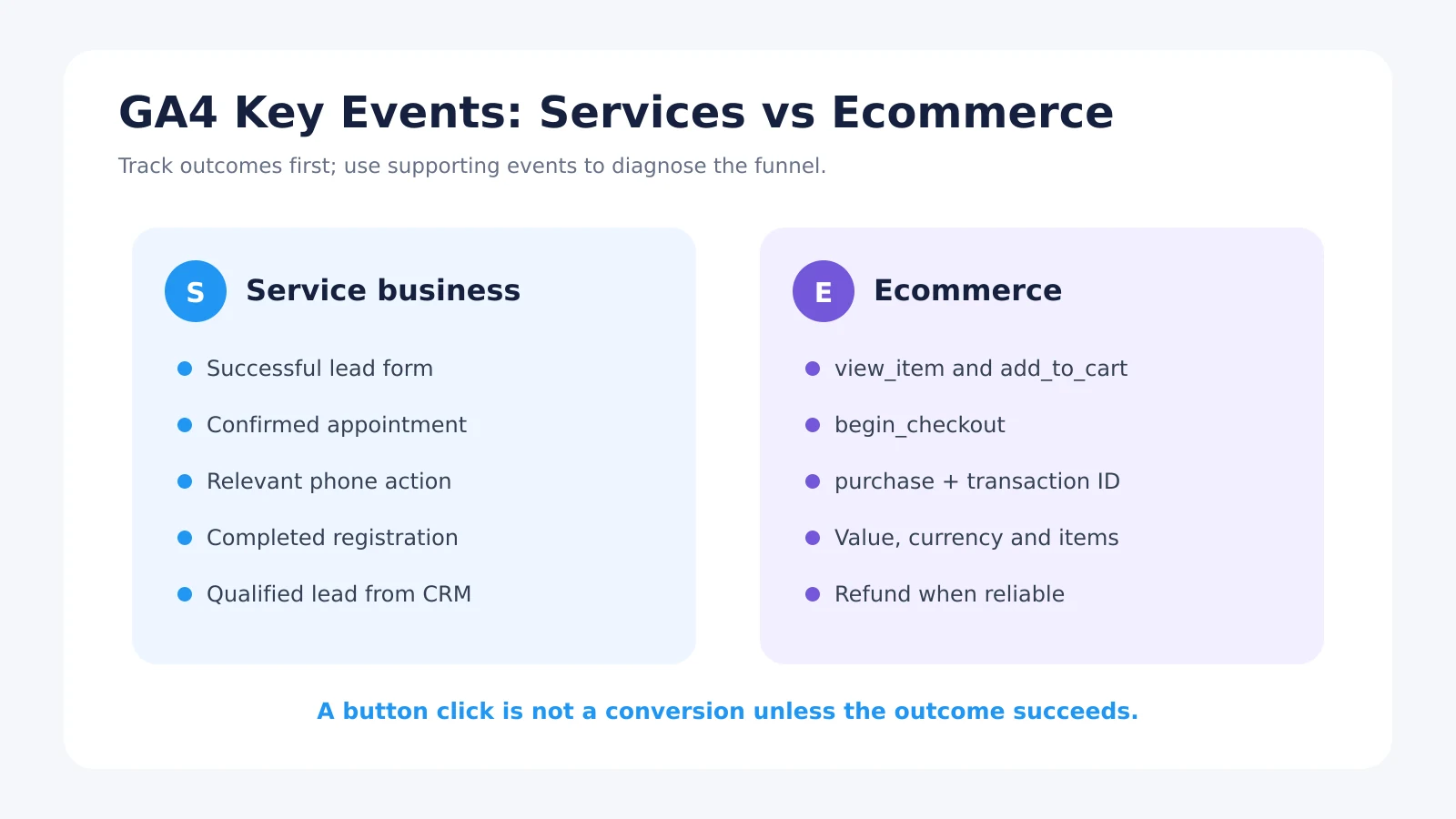
For a lead form, trigger the event after a successful submission or on a unique confirmation page—not on a generic button click. For ecommerce, implement the recommended ecommerce events and include a unique transaction ID, value, currency and item data. Google’s key-event measurement guide explains the current GA4 and GTM workflow.
Key events for service businesses
- Successful contact or quote form submission;
- Confirmed appointment or demo booking;
- Qualified phone-call action where meaningful;
- Completed application or account registration;
- Lead qualification stages sent back from a CRM, for more advanced setups.
Key events for ecommerce businesses
view_itemandadd_to_cartfor funnel diagnosis;begin_checkoutto measure checkout entry;purchasewith transaction details as the primary revenue event;- Refund events where the platform supports reliable implementation.
From our experience: We reviewed an ecommerce setup where Google Tag Manager appeared to be installed, but important events, transaction values and product IDs were missing or incorrect. Advertising reports could not show which products and campaigns generated real revenue. After rebuilding and testing the event logic, the data became usable for campaign decisions. A tag being present is not proof that tracking works.
Privacy, Consent and Google Analytics
Privacy requirements depend on where you operate and which users you serve. In Germany and the EU, analytics and advertising technologies commonly require a valid consent setup. A cookie banner must do more than appear: tags should respect the user’s choice, consent should be documented and the privacy notice should describe the processing.
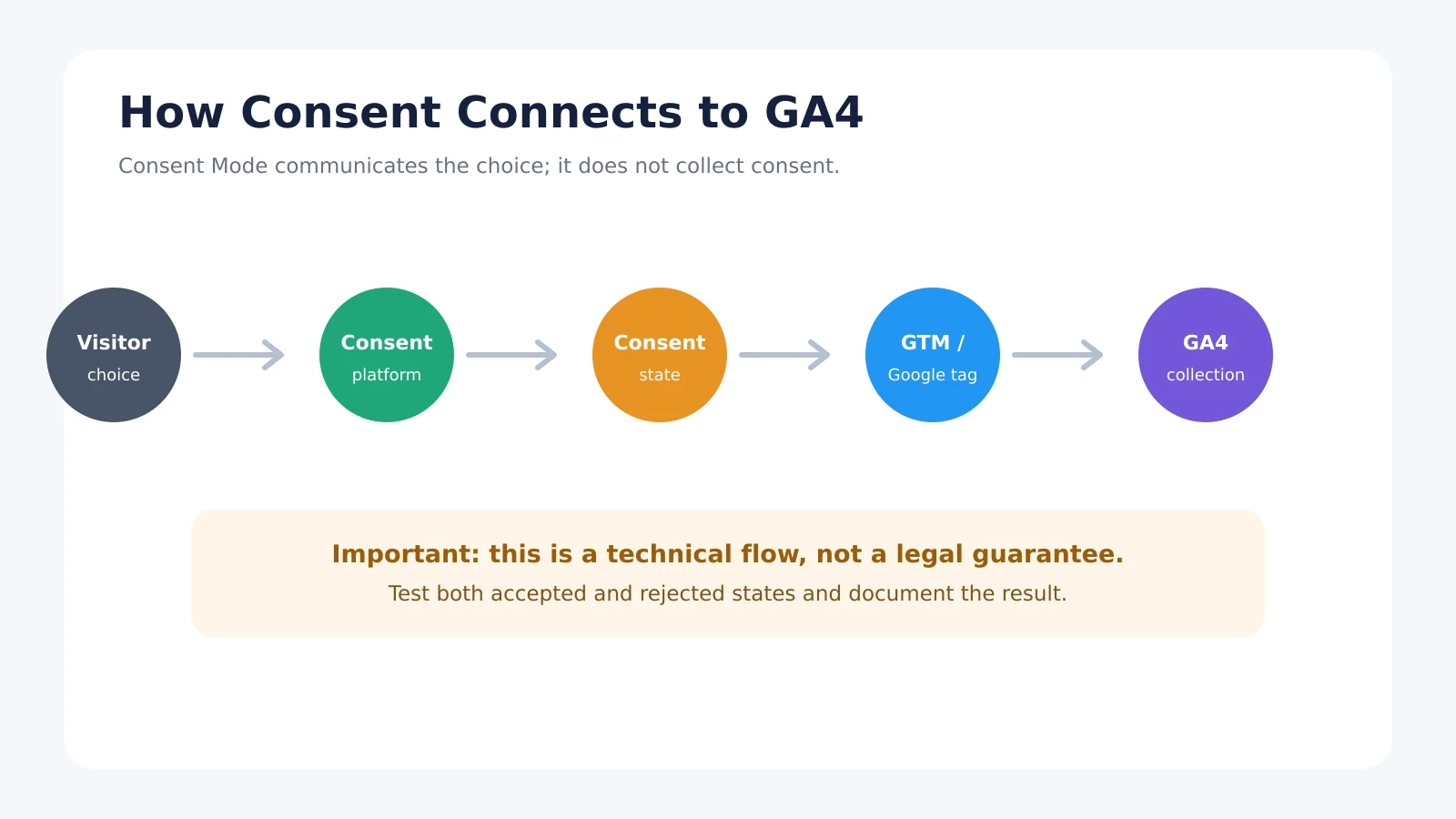
Google Consent Mode communicates consent states to Google tags; it does not itself collect consent and should not be treated as a substitute for a suitable consent-management platform or legal assessment. Google’s Consent Mode implementation guide explains the technical layer.
For German websites, the Federal Commissioner for Data Protection states that technically non-essential tracking technologies generally require user consent. Review the official cookie-banner guidance and obtain qualified legal advice for your specific setup. This article provides technical and marketing guidance, not legal advice.
Essential GA4 Settings to Review
- Internal traffic: define and filter office or developer traffic where appropriate.
- Unwanted referrals: prevent payment providers or booking tools from replacing the original source when configured correctly.
- Cross-domain measurement: use it when the user journey moves between domains you control.
- Data retention: standard GA4 properties allow event-level retention settings up to 14 months; review this before relying on Explorations for longer comparisons.
- User access: give people only the permissions they need and retain company-level administration.
- Google Ads and Search Console links: connect relevant products to enrich acquisition and advertising analysis.
Google documents the available data-retention controls. Retention settings affect certain user- and event-level data; they do not mean every standard aggregated report disappears after the selected period.
Traffic data is useful only when it leads to better decisions
See how tracking connects with landing-page performance and paid campaign quality.
SEO & Conversion Optimization →
Google Ads Audit Checklist →
How to Verify That GA4 Is Working
- Open GTM Preview and confirm the intended tags and triggers.
- Use GA4 Realtime and DebugView while performing test actions.
- Test both accepted and rejected consent states.
- Submit every important form and confirm one event—not zero or two.
- Complete a test purchase and verify transaction ID, value, currency and products.
- Check mobile and desktop journeys, confirmation pages and cross-domain steps.
- Review reports again after normal processing time; Realtime alone is not a full validation.
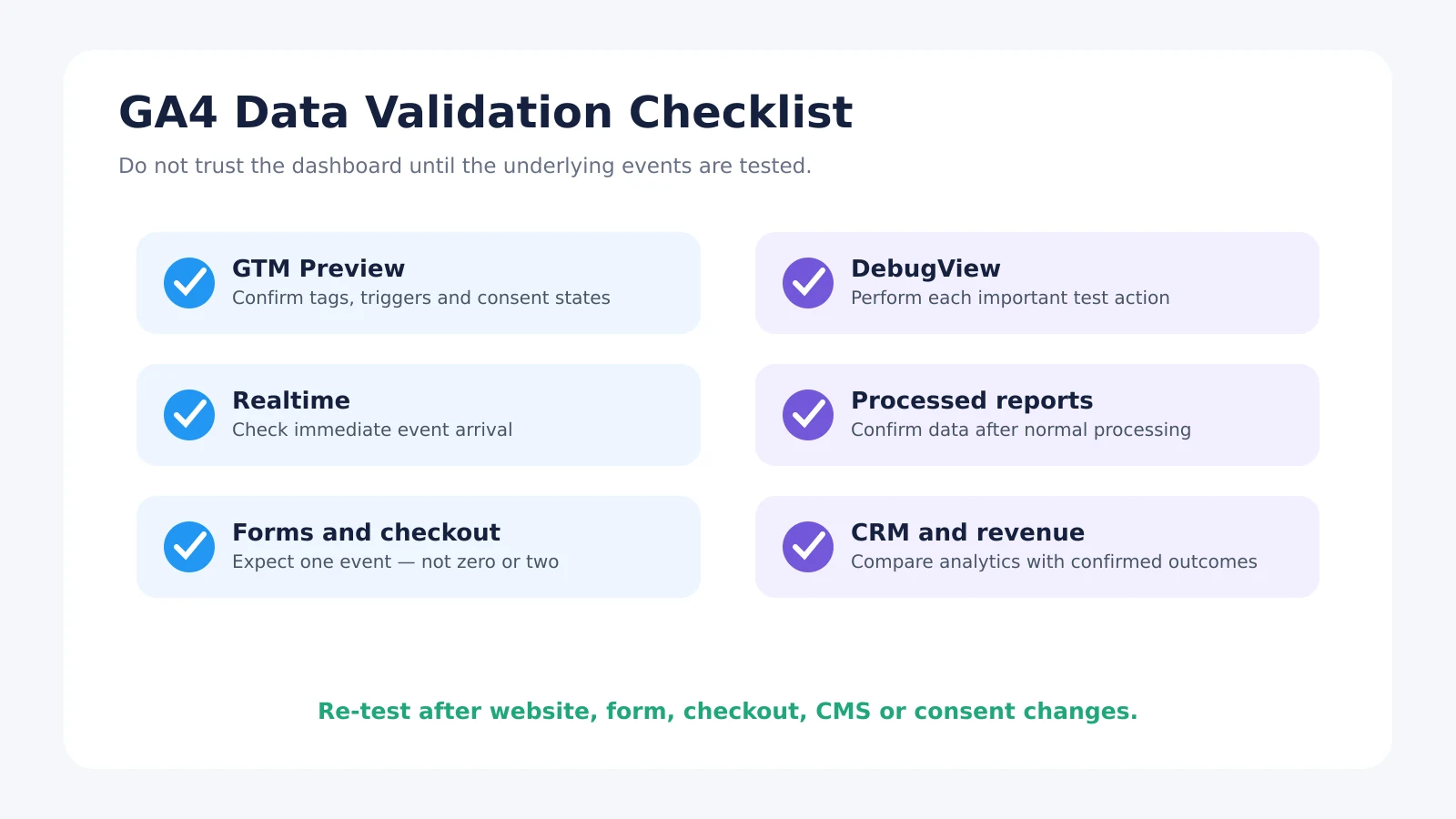
Document the test date, expected behavior and result. Re-test after major website, checkout, form, consent-platform or CMS changes.
How to Use Google Analytics Without Getting Lost
Small businesses rarely need dozens of dashboards. Begin with four recurring questions.
Which channels create valuable outcomes?
Use acquisition reports to compare organic search, paid search, referral, social and email. Evaluate key-event rate, qualified leads and revenue—not traffic alone. Campaign links should use consistent UTM parameters so email, partnerships and offline promotions are recognizable.
Which landing pages perform?
Compare entrances, engagement and key events by landing page. A high-traffic page with no next step may need stronger intent alignment or conversion design. Our guide to PPC landing pages explains how message match and page structure affect paid traffic.
Where does the journey break?
Use funnel explorations for a defined sequence: landing page → form start → successful submission, or product view → cart → checkout → purchase. A drop-off is a diagnostic signal, not automatic proof of a design problem. Check technical errors, traffic quality, pricing and user intent.
What changed, and why?
Annotate important business events outside GA4 if necessary: campaign launches, website migrations, pricing changes, outages and tracking releases. Compare appropriate periods and account for seasonality. A 30% increase means little without knowing the baseline and what changed.
Google Analytics for Business Intelligence
For a small business, business intelligence does not require a data warehouse. A simple monthly dashboard can combine GA4 channel data with advertising cost, CRM lead quality and confirmed revenue. This reveals the difference between a channel that generates cheap enquiries and one that produces profitable customers.
Use GA4 as one input, not the entire decision system. When volume and complexity grow, Looker Studio, BigQuery exports and CRM integration can support deeper analysis. Add complexity only when it answers a recurring business question.
Common Google Analytics Mistakes
- Installing the same GA4 property through multiple methods;
- Tracking button clicks instead of successful outcomes;
- Marking every interaction as a key event;
- Ignoring consent behavior and losing or collecting data incorrectly;
- Using inconsistent UTM parameters;
- Allowing referral, internal or developer traffic to distort reports;
- Giving an agency sole ownership of the account;
- Reporting traffic without lead quality or revenue;
- Changing the website without retesting tracking;
- Assuming numbers are correct because reports contain data.
Analytics should also be checked during a broader technical SEO audit, especially after redesigns and migrations.
Small Business GA4 Setup Checklist
- A one-page measurement plan defines business outcomes.
- The company controls GA4, GTM and related accounts.
- Property time zone, currency and data stream are correct.
- GA4 is installed once through a documented method.
- Consent behavior has been implemented and tested.
- Important actions send valid recommended events where possible.
- Primary outcomes are marked as key events.
- Internal traffic, referrals and cross-domain journeys are reviewed.
- Forms and ecommerce events are tested in DebugView and reports.
- Monthly reporting connects channels to leads, revenue and decisions.
Not sure whether your GA4 data is reliable?
We can review your GA4, GTM, key events and consent behavior, then show you what is working, what is missing and what to fix first.
